Oct 16, 2025
I Tried 20+ Website Builders To Find the Right One for You in 2025
Product Round-up
After testing over 27 website builders, here are my favourite picks to build a website in 2025.
TL;DR (pick fast)
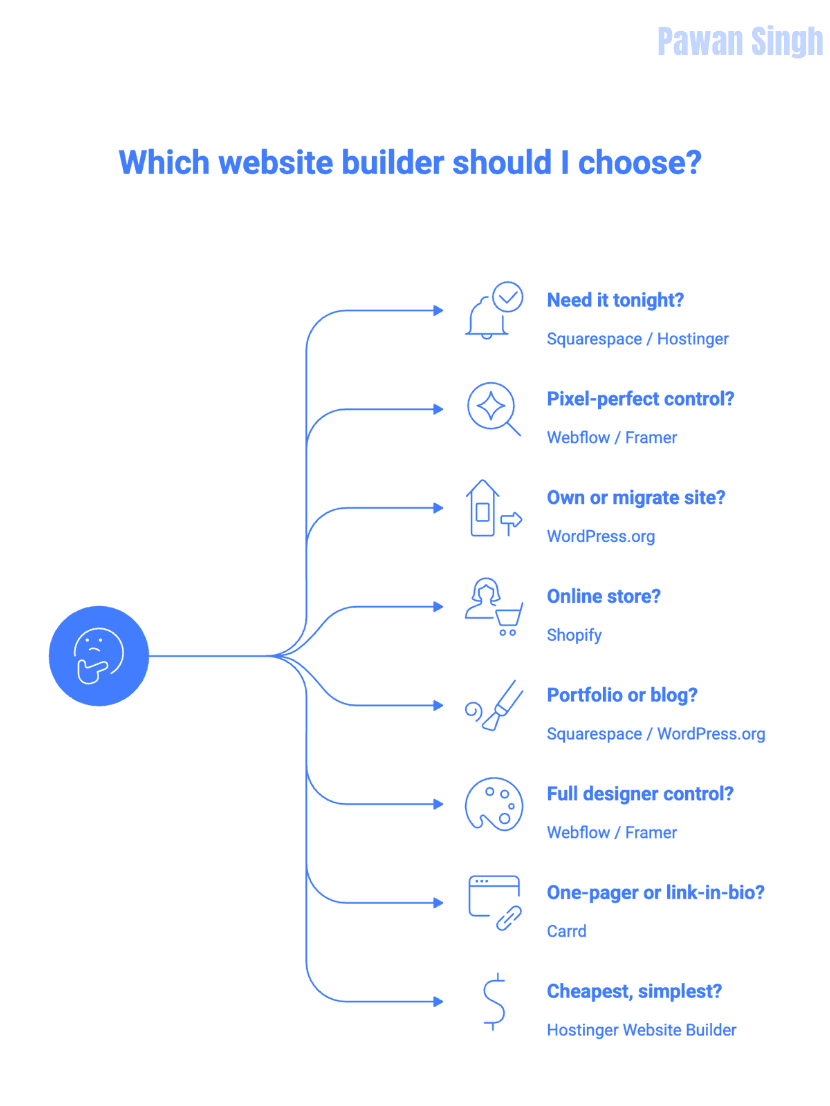
Squarespace: Best overall for portfolios/blogs (Goldilocks: easy + flexible)
Wix: Most features & templates; can overwhelm; responsiveness takes care
Webflow: Designer power & CMS; steep learning curve
Framer: Modern designer tool, faster than Webflow, still pro-leaning
Shopify: E-commerce first; huge app store; design via sections
WordPress.org: Own everything; limitless with plugins; DIY hosting
Hostinger Builder: Cheapest all-in-one to get online
How to choose (2-minute decision)
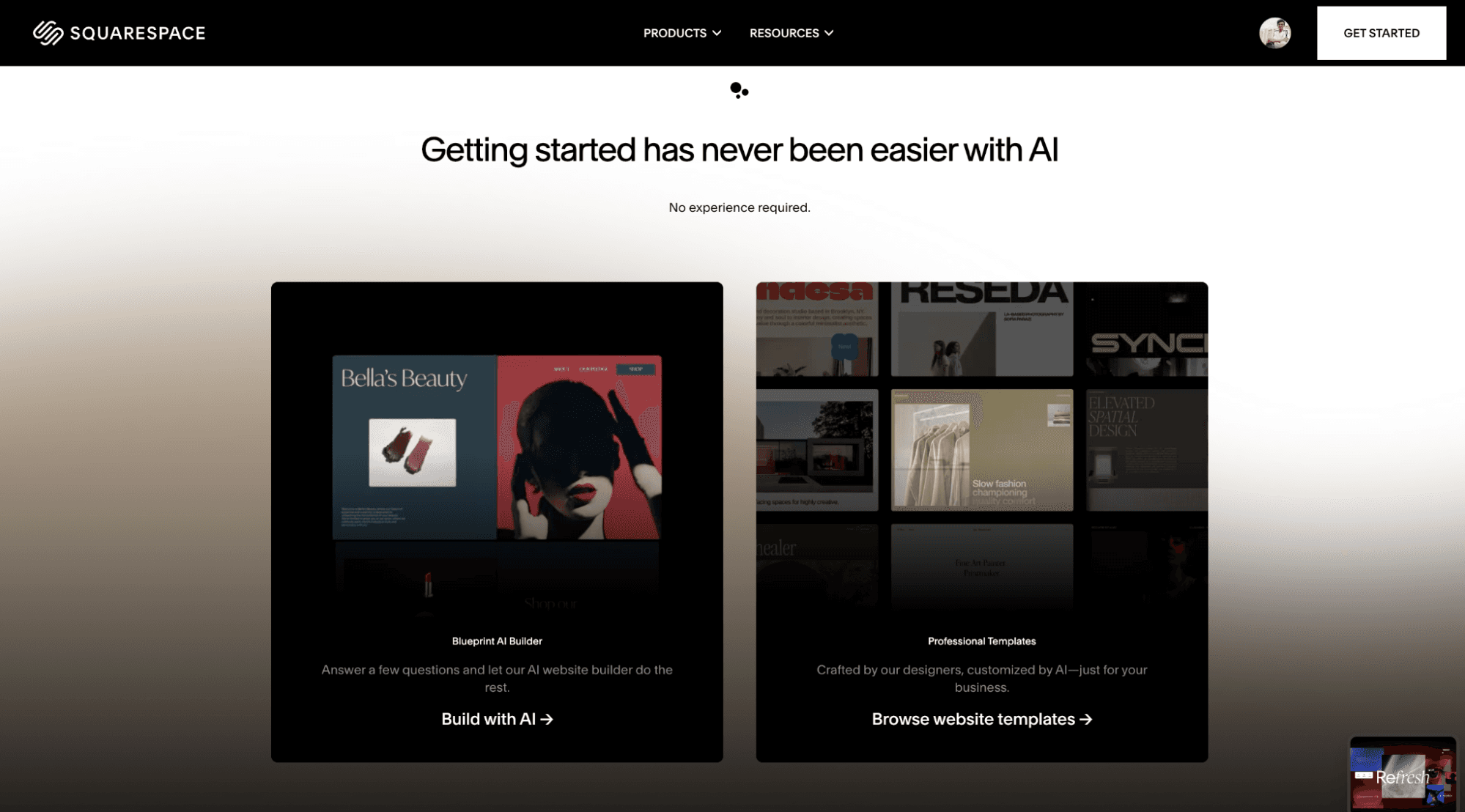
Squarespace: Best for clean design and beginner-friendly customization
Why do I like Squarespace? Squarespace is super clean, feels modern, and gives a surprisingly good level of customization even after being a no-code builder. The editor feels clean and focused, with none of the clutter or chaos you’ll find in some other builders.
Who is Squarespace best for? Creators, designers, and small businesses who want a premium, visually polished website that’s easy to build, well-structured, and effortlessly stylish without needing a professional designer.
Pros
Clean, award-winning templates
Smooth drag-and-drop editor
Intuitive grid alignment
Built-in email and marketing tools
Great for creative websites and portfolios
Cons
Limited AI features
Slightly pricey for small personal sites
E-commerce tools gated behind higher plans
Page speed could be better (around 2.5s load)
Fewer extensions than competitors
Standout Features
Award-winning templates: With 100+ professionally designed templates that have literally won web design awards, Squarespace nails the aesthetics. Every layout feels premium right out of the box.
Minimalist yet powerful editor: The refreshed editor feels faster and more stable than ever. Smooth drag-and-drop controls, smart grid snapping, and a clear visual guide for alignment make designing simple, even for non-designers.
Unique content blocks: Beyond text and images, you can embed SoundCloud tracks, accept donations, or even integrate Amazon products– small touches that give creative websites more personality.
Built-in marketing tools: Squarespace lets you run email campaigns, manage inventory, and design promos right inside the dashboard. It’s not Shopify-level powerful, but for small brands or creators, it’s perfectly balanced.
Responsive by design: The site automatically adapts to any screen size — no manual tweaking, no broken layouts.
Does Squarespace use AI or automation tools?
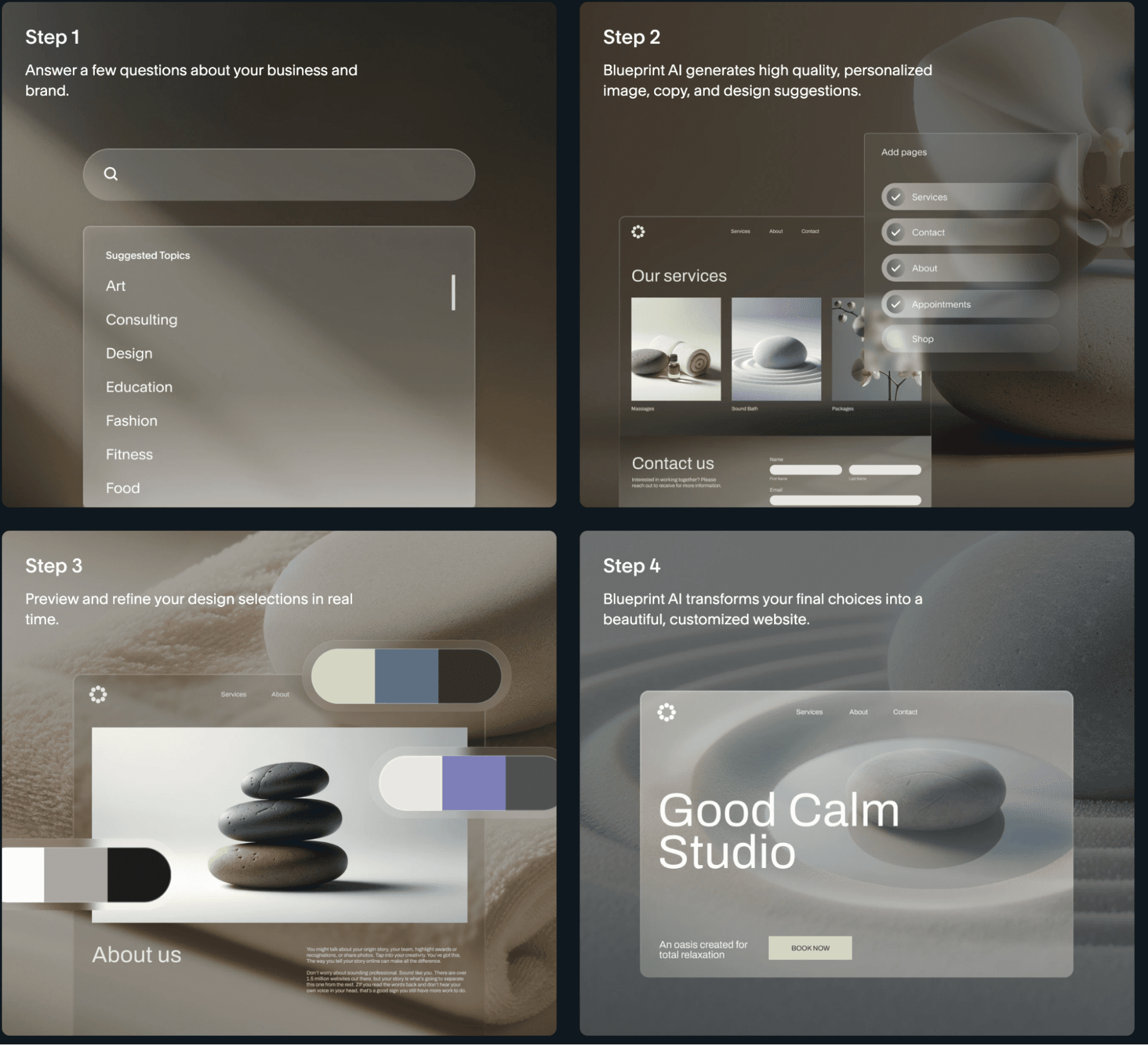
Here’s where Squarespace feels a bit behind. The AI text writer can fill in placeholder copy, but it’s nowhere near the smart AI template generation tools that newer players like Hostinger are experimenting with. For now, it’s a basic helper that is decent for quick drafts, but not something that can build a page from scratch.
Is Squarespace easy to use and customize?
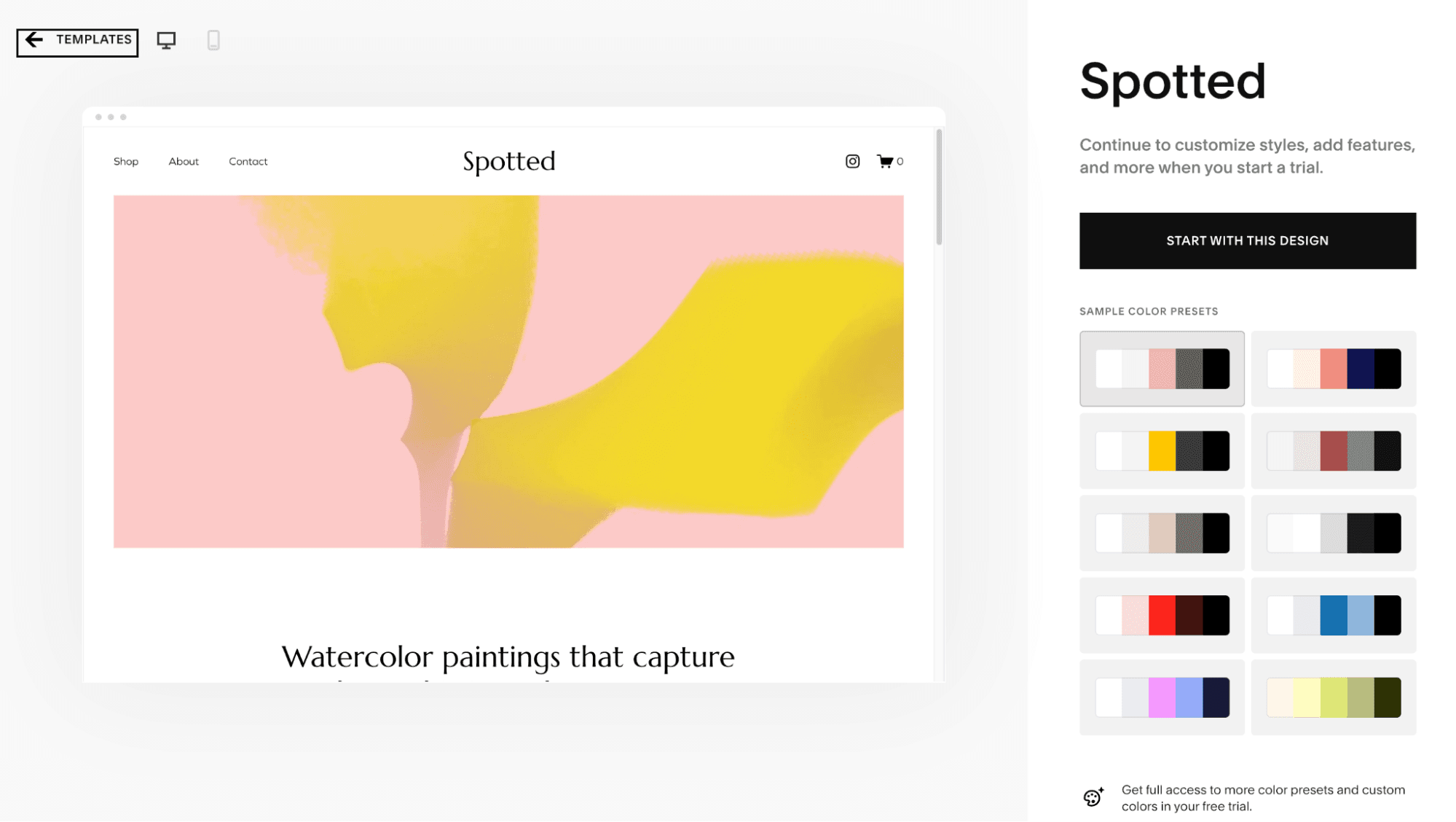
This is where Squarespace shines. It’s fast, intuitive, and visually predictable. The new “Refresh” update fixed the lag that used to bug me during edits. It’s perfect for beginners who don’t want to fight against a blank canvas but still want enough flexibility to adjust layouts, fonts, and buttons precisely. You get structure without limits, which makes it great for creative beginners.
How much does Squarespace cost?
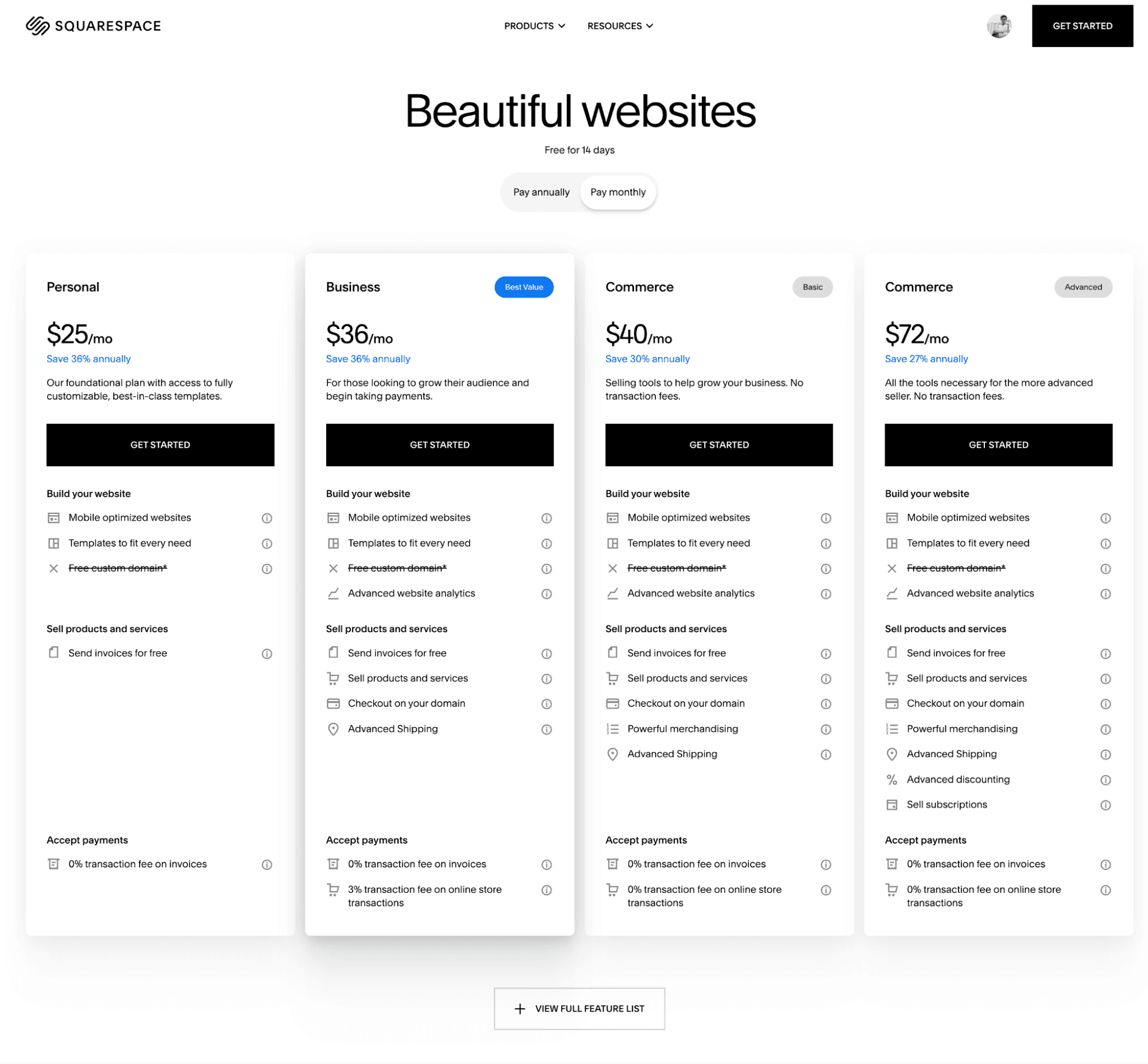
Squarespace’s pricing starts at $25/month for the Personal plan, $36/month for Business, $40/month for Commerce (Basic), and $72/month for Commerce (Advanced), each offering mobile-optimized templates, free domains, and 0% transaction fees on invoices, with higher tiers adding e-commerce tools like advanced analytics, shipping, and subscriptions.
Wix: Most features and templates, but responsiveness needs care
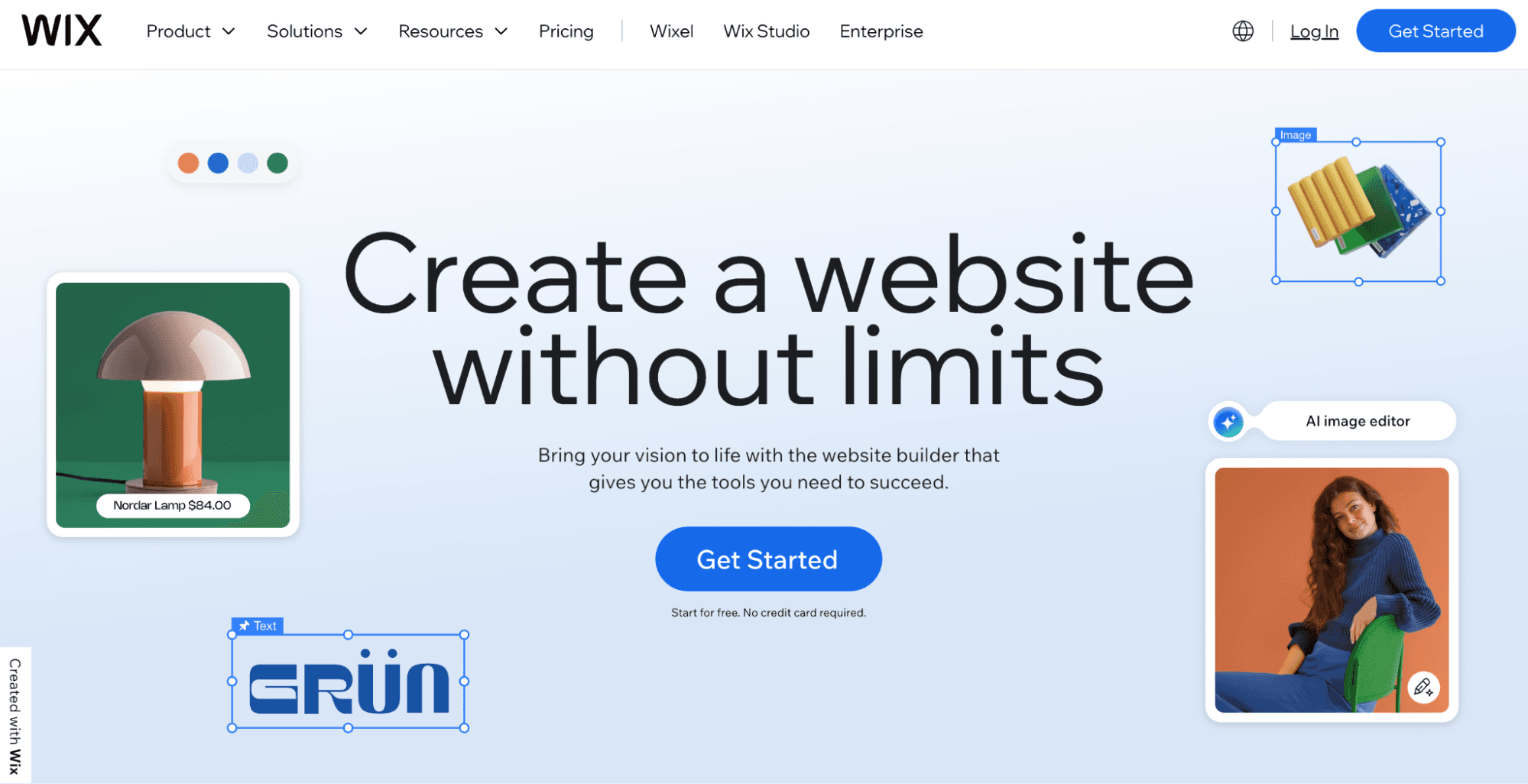
Why do I like Wix? Wix is the classic all-in-one builder with a huge library of modern templates, a true drag and drop editor, and an app market that turns a simple site into a real business hub.
Who is Wix best for? Entrepreneurs, freelancers, and small teams who want a professional site quickly with rich templates and useful tools, without managing servers or plugins.
Pros
Very large template library with options for almost every niche
Real WYSIWYG editing that feels intuitive
Good starter ecommerce with products, subscriptions, and payments
App Market plus built-in email, automations, and analytics
SEO controls are strong now with URLs, 301s, schema, and image optimization
Cons
You pay for convenience, and costs can add up
Template lock-in means changing later often requires a rebuild
Not ideal for complex stores that plan to scale fast, Shopify suits that better
Limited access to advanced backend or custom development
Free plan shows Wix ads and uses a Wix subdomain
Standout Features
Templates tied to function: Store themes arrive with product pages, cart, checkout, and sign ups already wired, so most of the groundwork is done.
Visual freedom: Move and resize elements directly on the canvas and publish what you see.
Business toolkit inside: Email campaigns, a social post designer, a simple video editor, automations, and analytics live in the dashboard.
Solid beginner-friendly commerce: Sell physical or digital items and services, use coupons and abandoned cart recovery, and connect Instagram and Facebook.
SEO that beginners actually use: Cleaner code paths, mobile readiness, image compression, and a guided checklist reduce mistakes.
Does Wix use AI or automation tools?

Wix ADI asks a few questions and scaffolds a site with structure and starter copy. It is great for getting unstuck, and you can refine everything in the main editor. Built in automations handle common flows like form to email to contact list without outside tools.
Is Wix easy to use and customize?
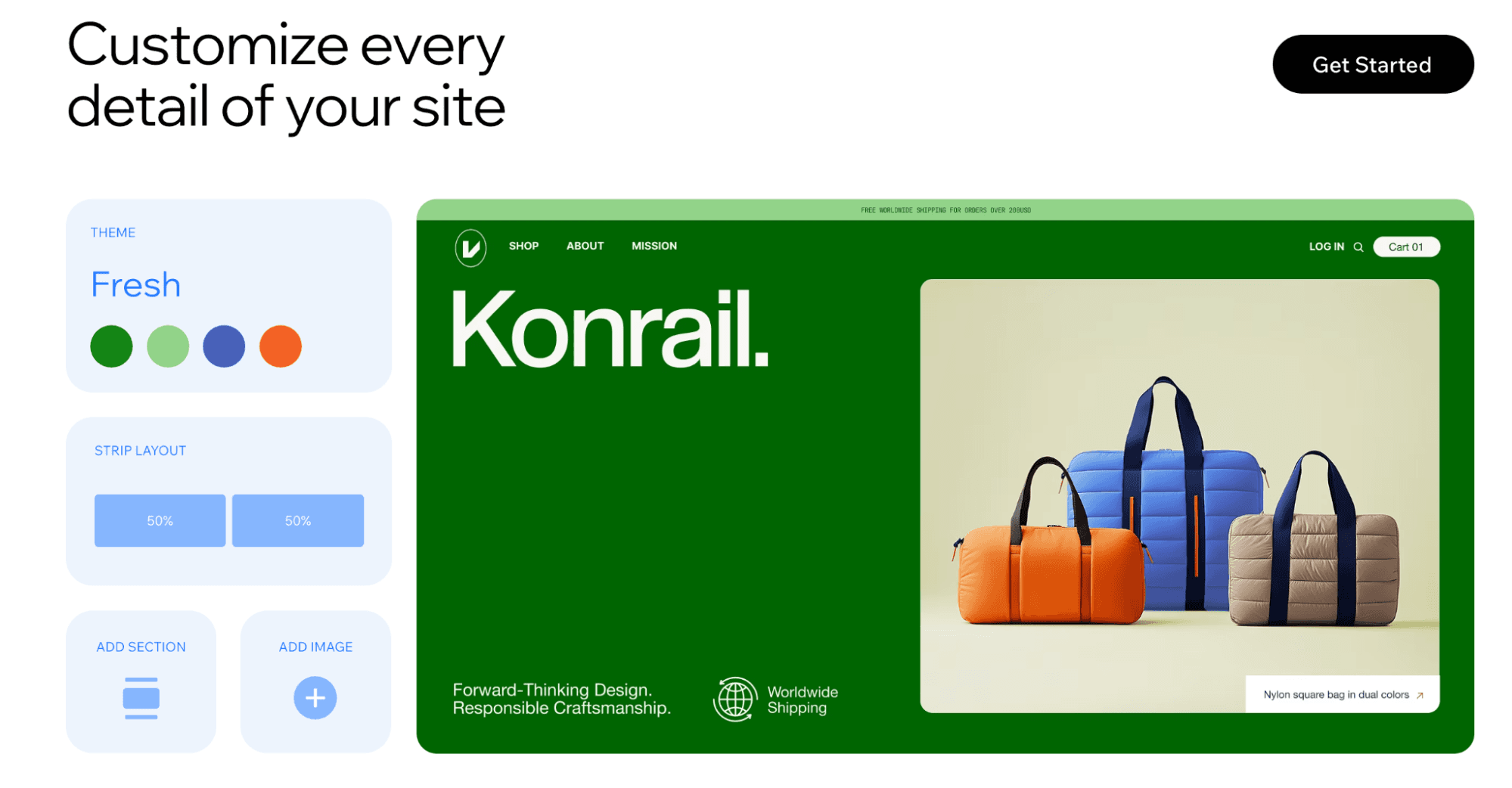
Editing feels fast and visual, and most beginners are comfortable within an hour. The tradeoff is that complex, free-form layouts may need a little manual attention for mobile. Choose your template carefully at the start to avoid the lock-in headache later.
How much does Wix cost?
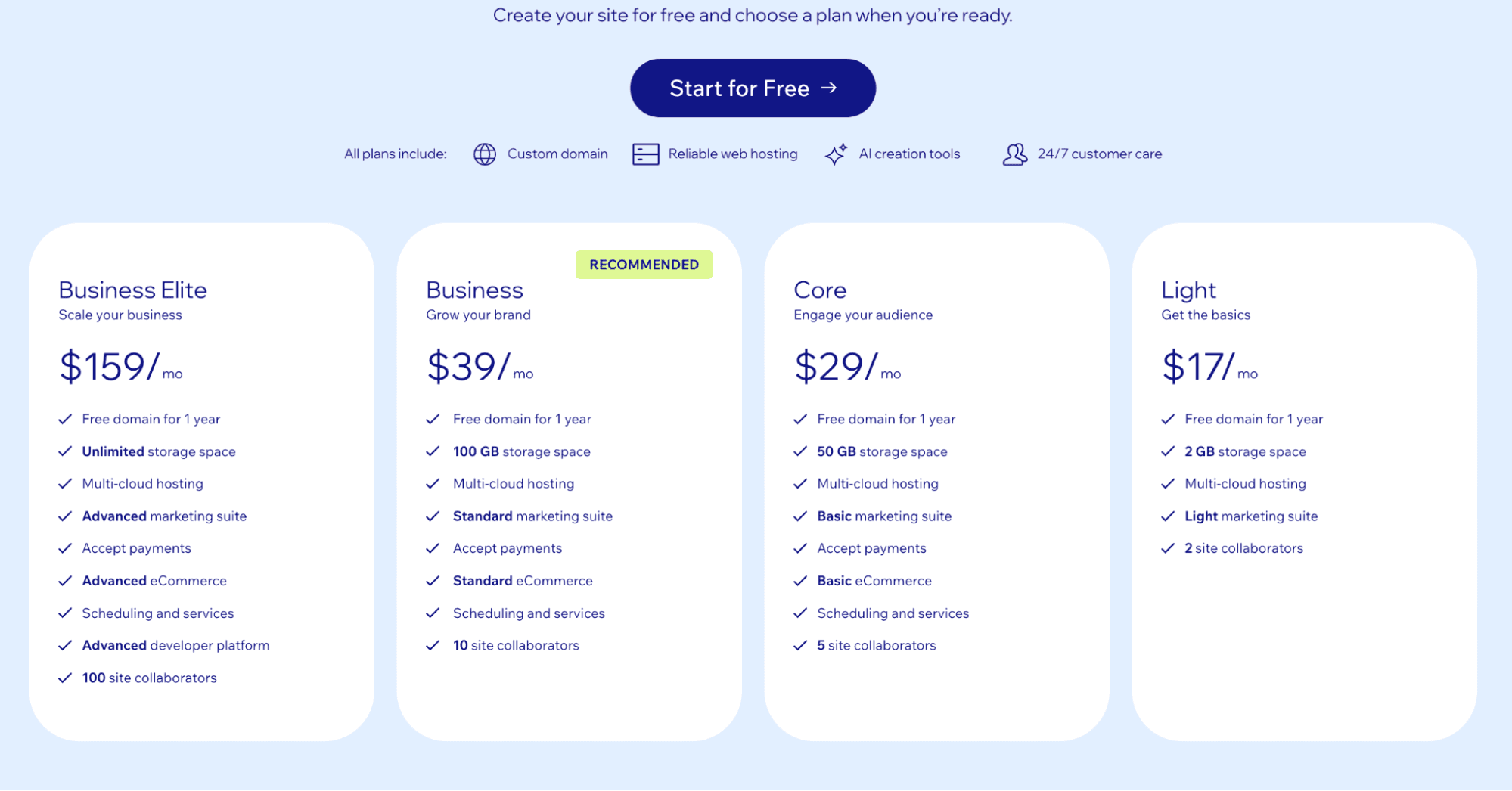
Wix’s pricing starts at $17 per month for the Light plan and goes up to $159 per month for the Business Elite plan. The higher tiers add more storage, advanced eCommerce tools, stronger marketing features, and collaboration support for growing or large-scale businesses.
Webflow: Designer power and CMS, but steep learning curve
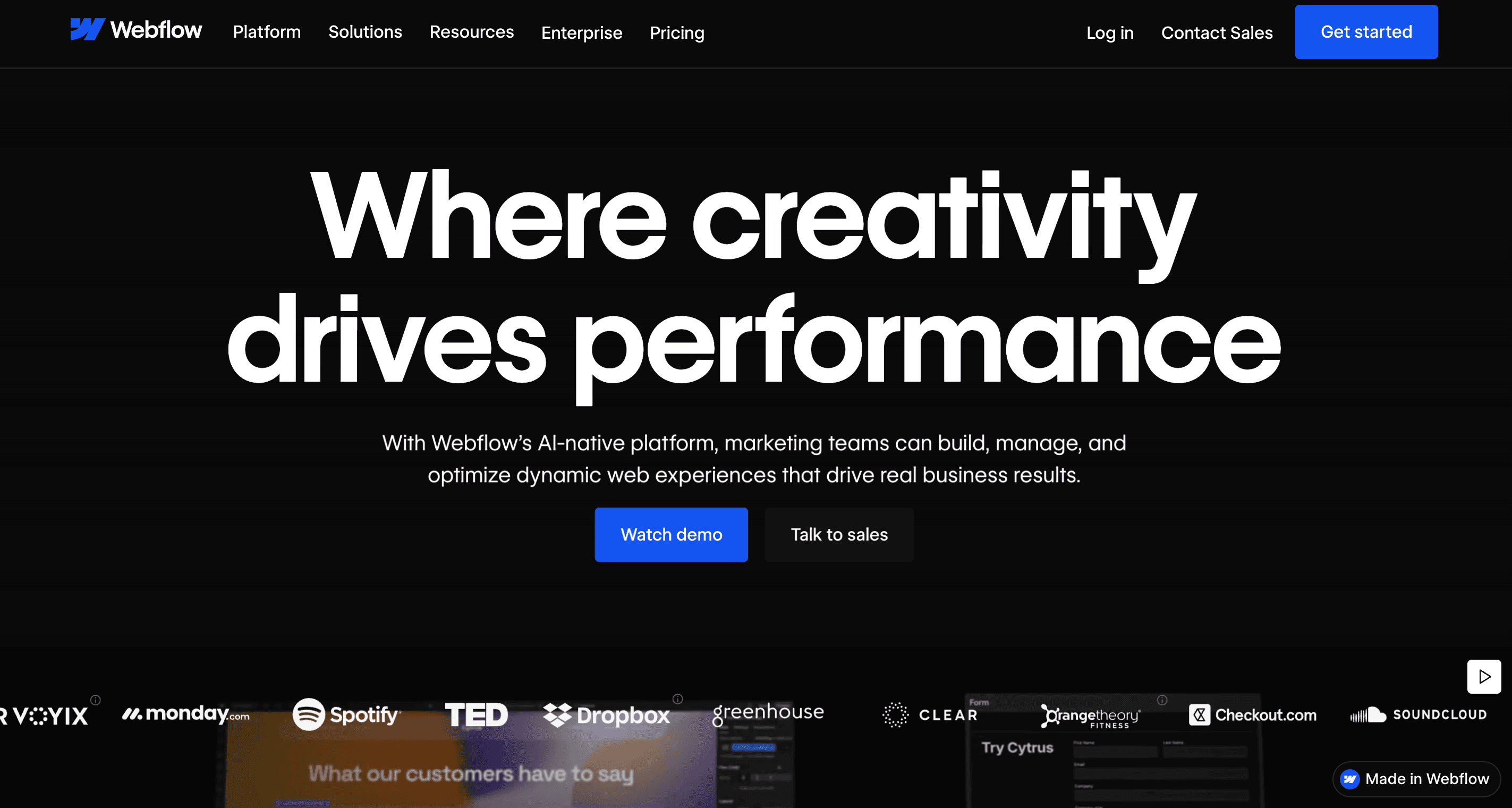
Why do I like Webflow? Webflow gives you the kind of pixel-level design freedom that tools like Figma offer, but turns it into a real, responsive website. I like that you can see how everything works under the hood, from CSS styling to the box model, while still using a visual editor.
Who is Webflow best for? Webflow is best for designers, agencies, and freelancers who want total visual freedom and need a powerful CMS to handle blogs, landing pages, or client sites.
Pros
Total creative freedom with advanced design controls
Built-in CMS is powerful enough for large content teams
Clean, fast-loading code output (no bloat)
Smooth animations and interactions without external scripts
Professional-grade hosting with solid performance
Cons
Steeper learning curve for beginners
Pricing gets expensive for multiple sites or team access
Limited native eCommerce tools compared to Shopify
Can feel intimidating for non-designers
No direct mobile app editing
Standout Features
Visual designer with developer-level control: Every element sits inside a “box model” that you can customize down to padding, margins, and breakpoints. You literally see how a website is built while designing it.
CMS built for scale: Webflow recently rewrote its CMS, and it now supports over one million items per site with improved performance and nesting options for large projects.
Real-time collaboration and commenting: Multiple teammates can edit the same page, add comments, and iterate together — no more back-and-forth screenshots.
Animation and interaction engine: Build scroll effects, reveal animations, and transitions directly inside the visual editor without touching JavaScript.
Code components: Developers can now import React components or custom-coded elements that render inside the designer, merging front-end design and back-end flexibility.
Does Webflow use AI or automation tools?

Yes. Webflow’s new AI features can generate titles, meta descriptions, alt text, and even schema markup directly inside the editor. You can also use AppGen, its latest AI tool, to create entire web apps from prompts and connect them to your CMS data. There’s also an AI Assistant that helps you edit or add sections to your site — though it’s still evolving, it’s a big step toward smart automation inside Webflow.
Is Webflow easy to use and customize?
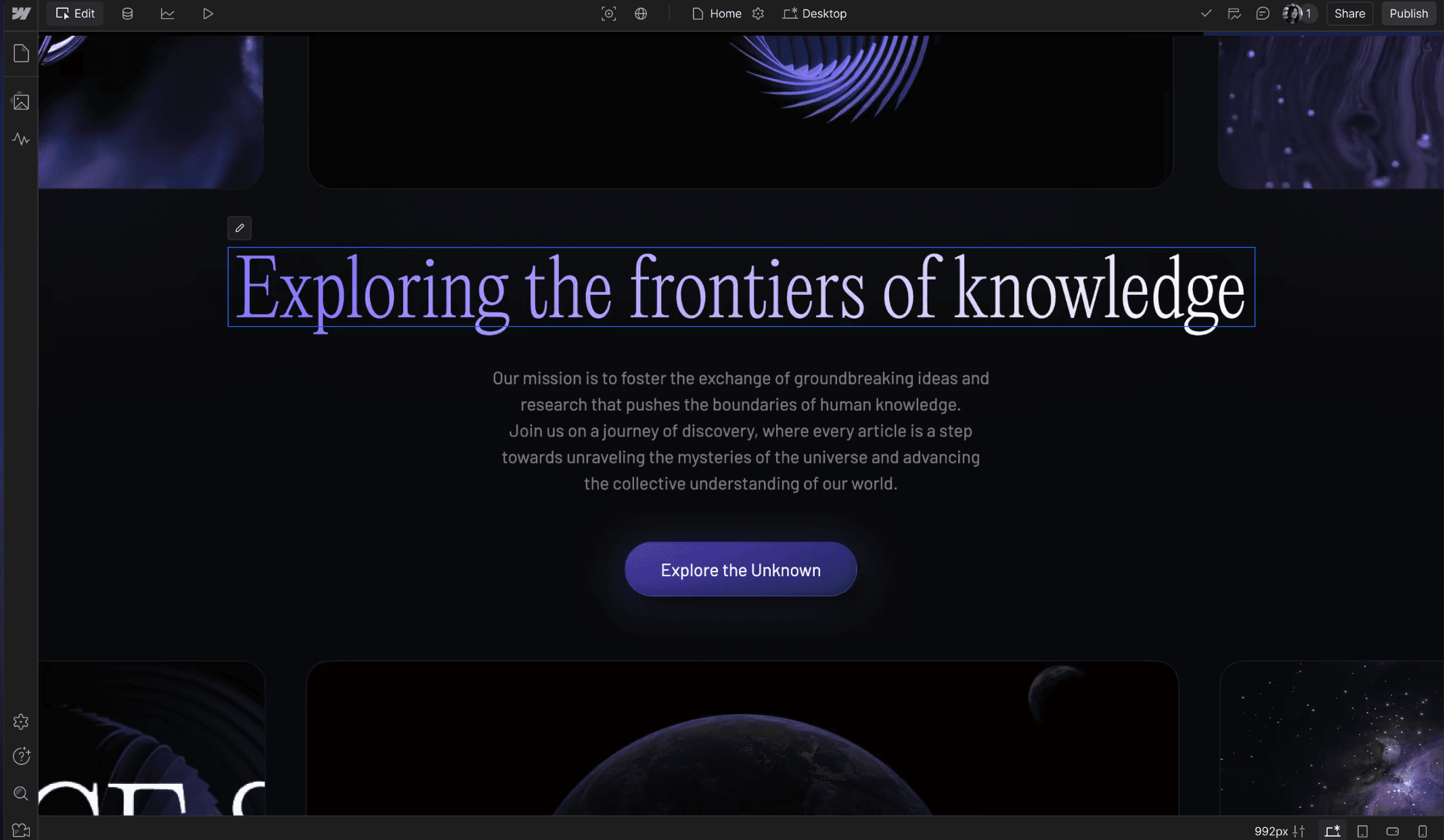
Not at first. Webflow feels more like design software than a simple builder, so beginners might need a learning curve to grasp how containers, grids, and classes work. Once you understand the logic, it’s incredibly fast and precise. You can create custom layouts, reusable components, and scalable systems that feel way more professional than drag-and-drop builders.
How much does Webflow cost?
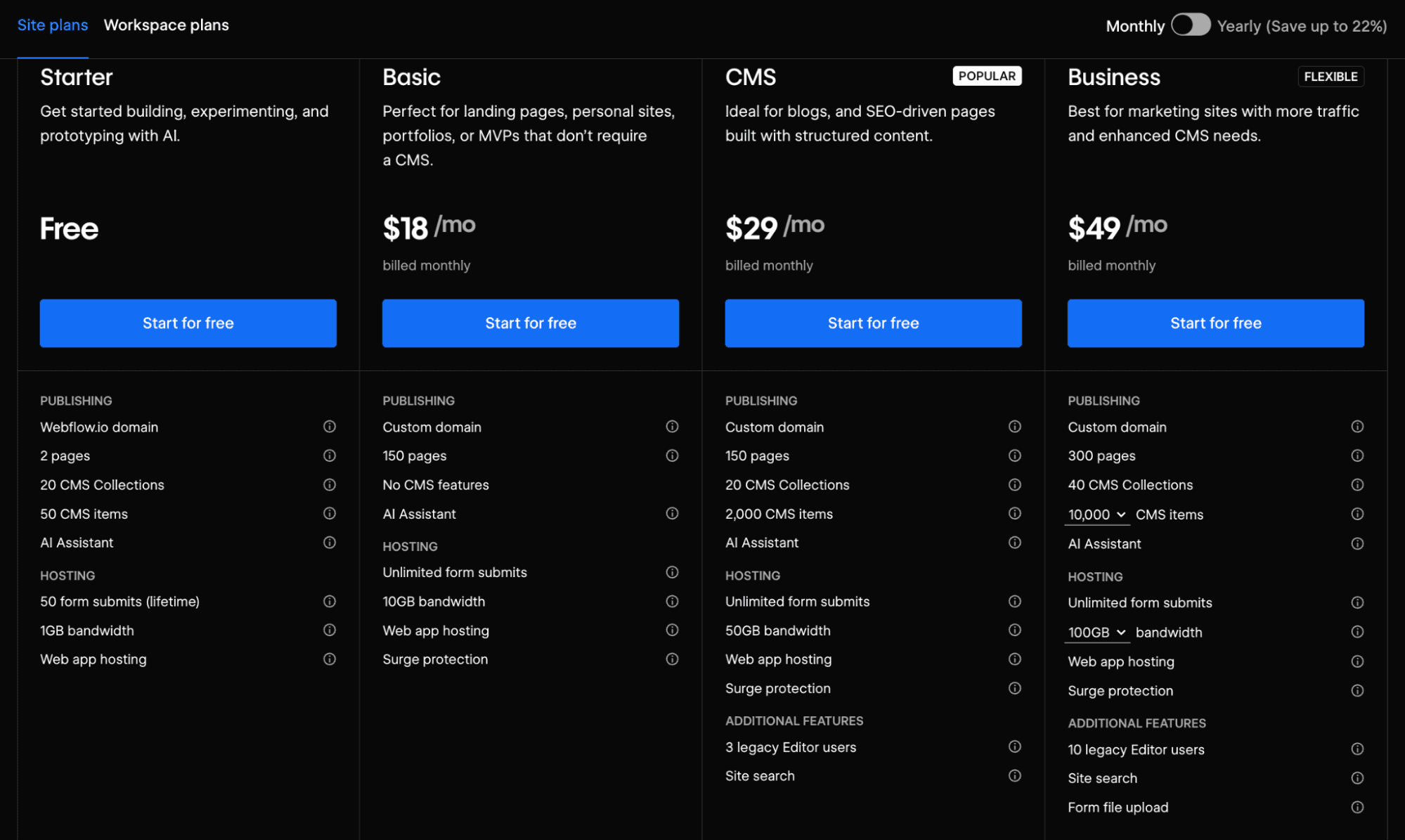
Webflow’s pricing starts free, with paid plans from $18/month for Basic to $49/month for Business, offering more CMS items, bandwidth, and marketing tools. The CMS plan at $29/month suits most creators. For teams, workspace plans range from free to $60/month, adding collaboration and advanced staging features.
Framer: Modern designer tool, faster than Webflow, still pro-leaning
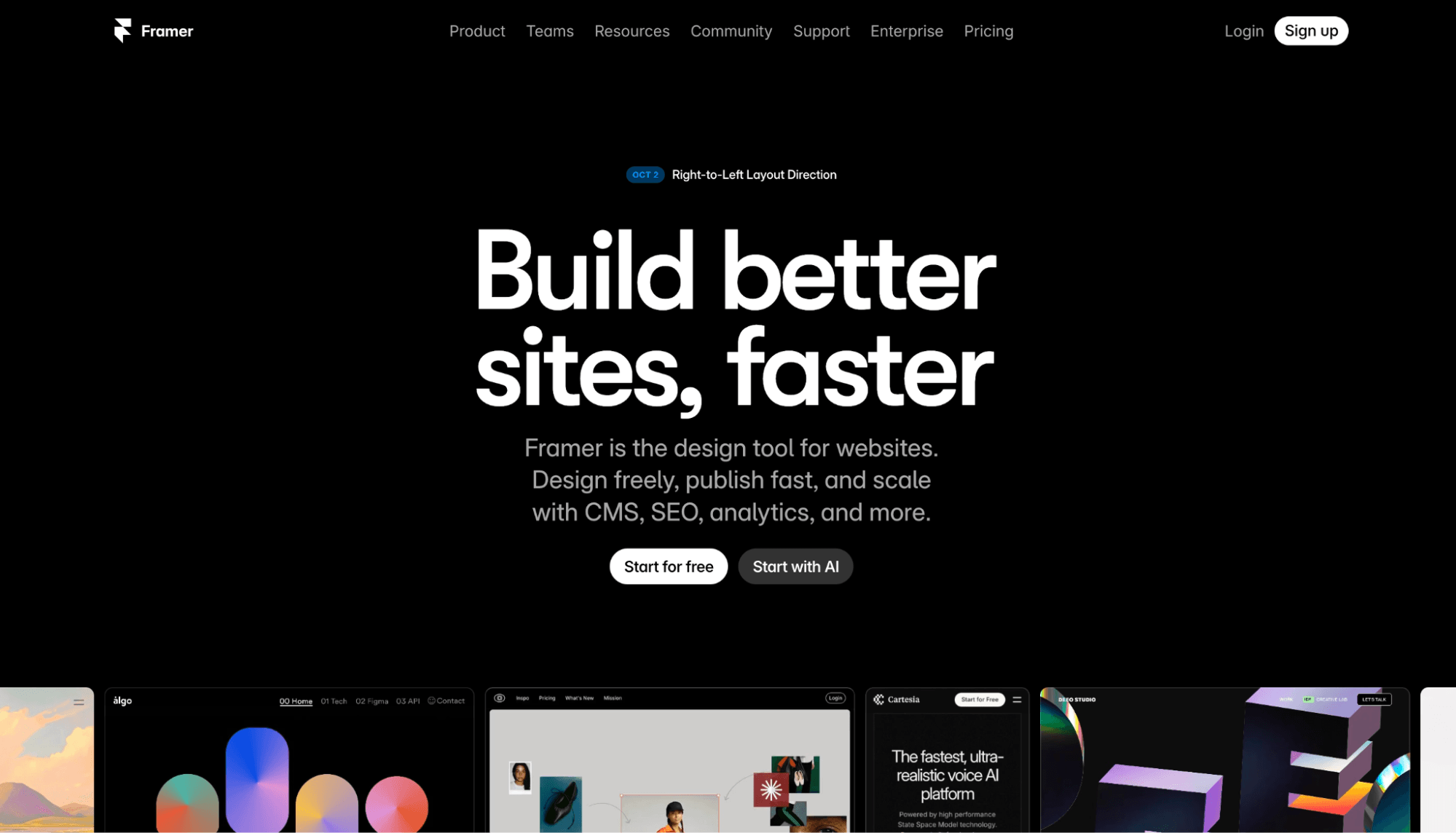
Why do I like Framer? You start with a blank canvas, set your breakpoints, and instantly see how your site adapts across devices. The whole experience feels like designing in Figma, but you’re building a real, working website at the same time.
Who is Framer best for? Framer is best for designers, developers, and creative professionals who want full control over layout and animation without touching traditional code.
Pros
Real-time design and preview in one workspace
Fast, intuitive editor that feels like Figma
Powerful animation and motion tools
Fully responsive across devices with breakpoints
Easy component creation and reuse
Cons
Learning curve for absolute beginners
Limited third-party integrations
Fewer eCommerce options than Webflow or Wix
Collaboration tools could be stronger
AI tools are still in early stages
Standout Features
Design on a live canvas: Build directly on the page, see changes instantly, and publish what you see.
Breakpoints made simple: Set desktop, tablet, phone views, and tune layout and type per screen for true responsiveness.
Components you can reuse: Create buttons or cards once, expose variables for text and images, and update every instance at once.
Motion without code: Add appear effects, transitions, and even 3D transforms in a few clicks.
Precise layout control: Mix relative and absolute positioning, use pins and padding, and keep everything neatly aligned.
Fast publishing: Share with a free Framer subdomain or connect your own custom domain in minutes.
Does Framer use AI or automation tools?
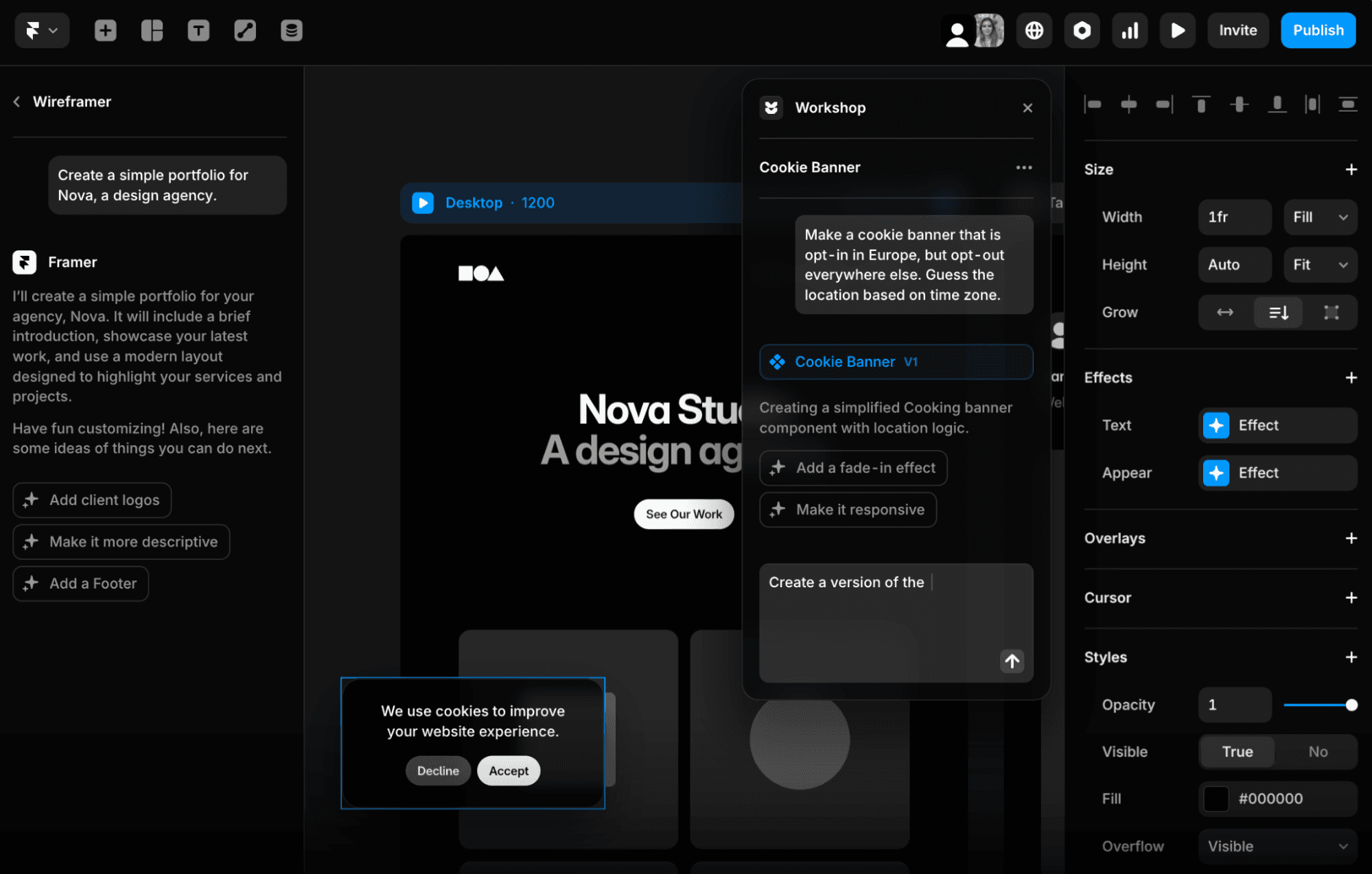
Yes. Framer’s built-in AI assistant can generate layouts, starter content, and styles based on your input. It’s not meant to replace your creativity but to help you start faster and focus on visual polish instead of setup.
Is Framer easy to use and customize?
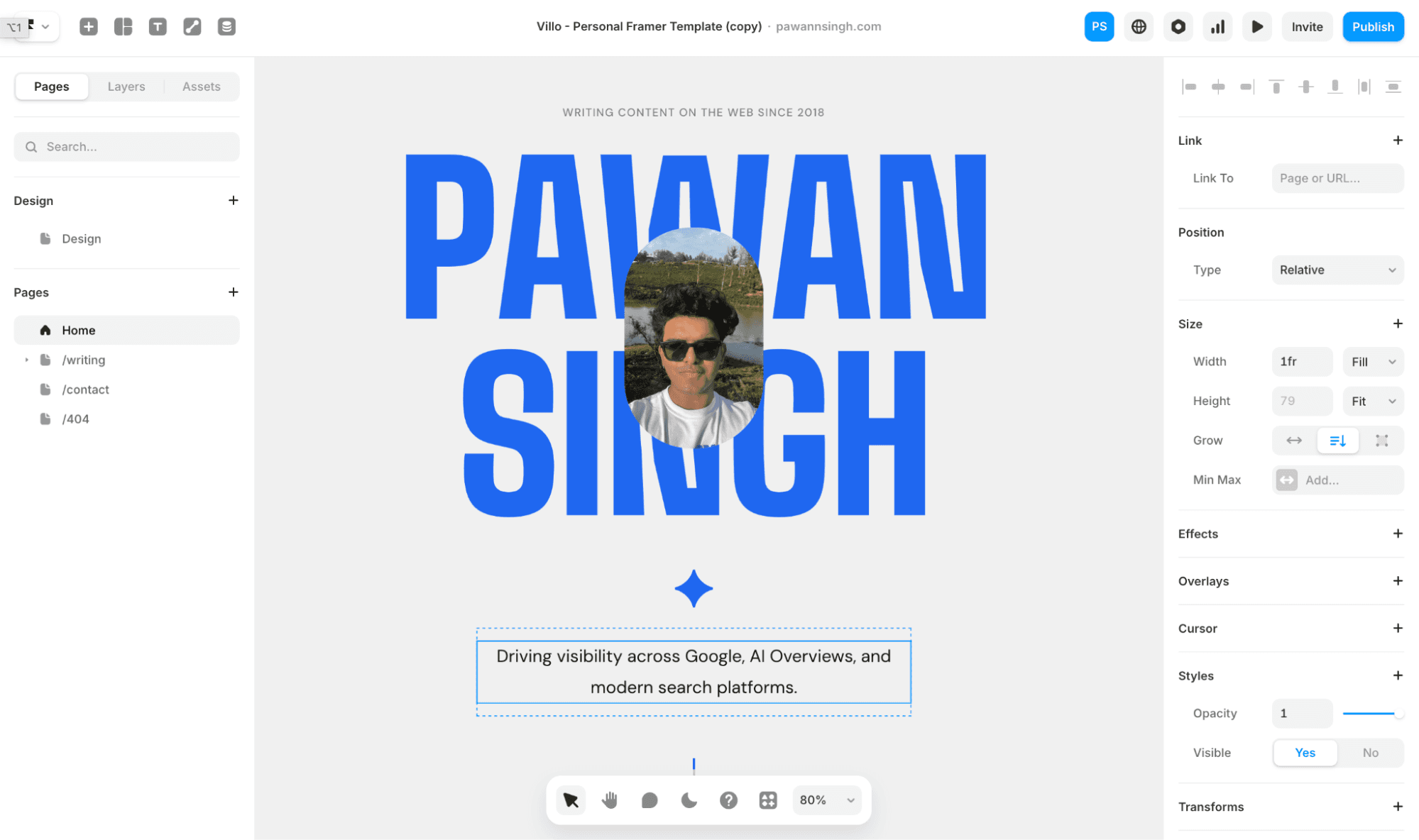
Framer is easy once you get the logic. It takes a little time to understand stacks, frames, and breakpoints, but after that, you move quickly. Everything happens in real time. Be it text resizing, layout adjustments, mobile previews, and animations, so you see the impact of your changes immediately. It’s one of the most design-friendly tools I’ve used, even though it still feels more professional than plug-and-play.
How much does Framer cost?
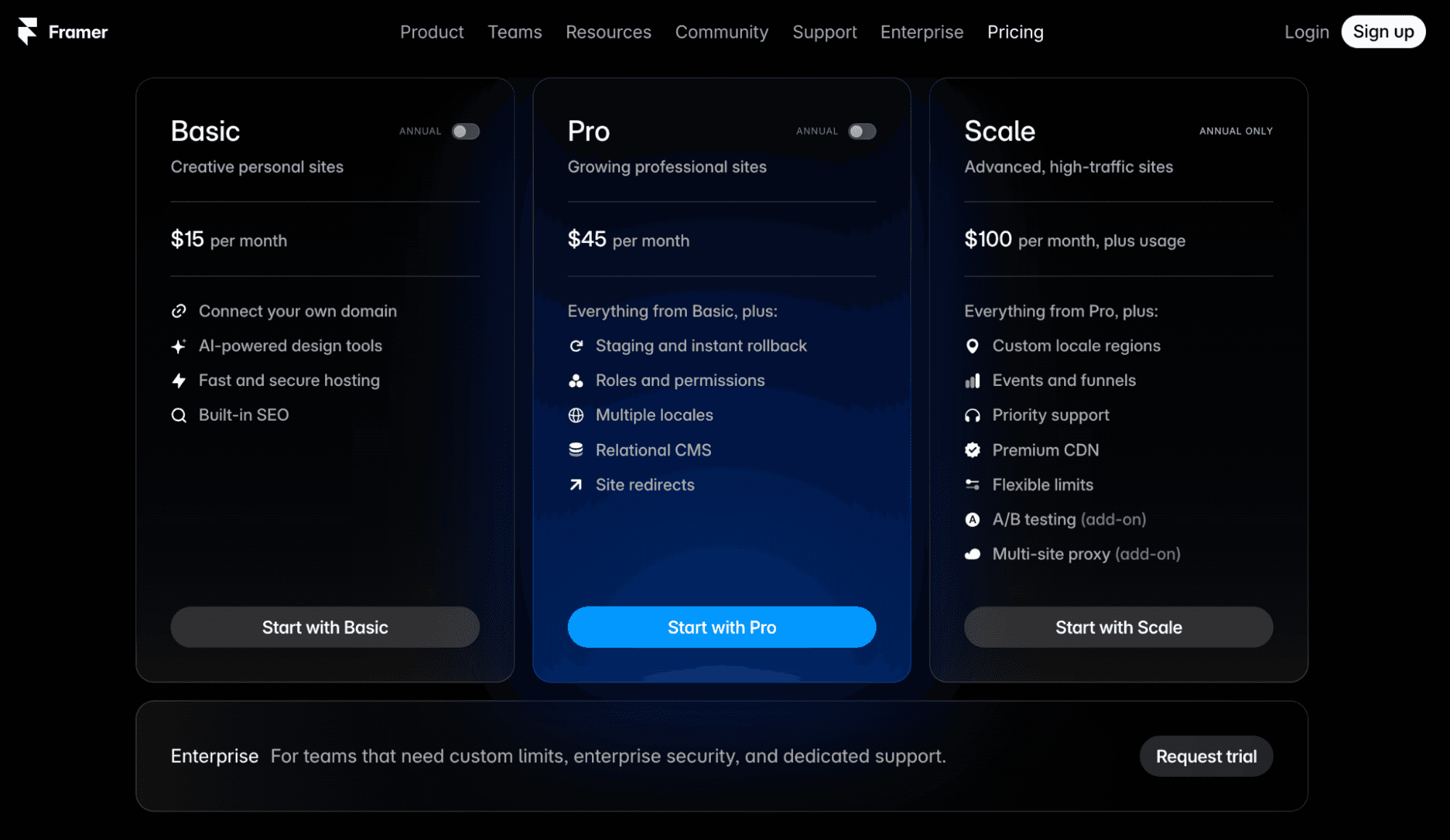
Framer's basic plan costs $15/ month and offers entry-level tools. But, if you're ready to go all in, the Pro plan comes at $45/ month and offers better storage and bandwidth. And, for the professionals, the Scale plan suffice with custom locale regions, priority Framer support, and more for $100/ month.
Shopify: E-commerce first; huge app store; design via sections
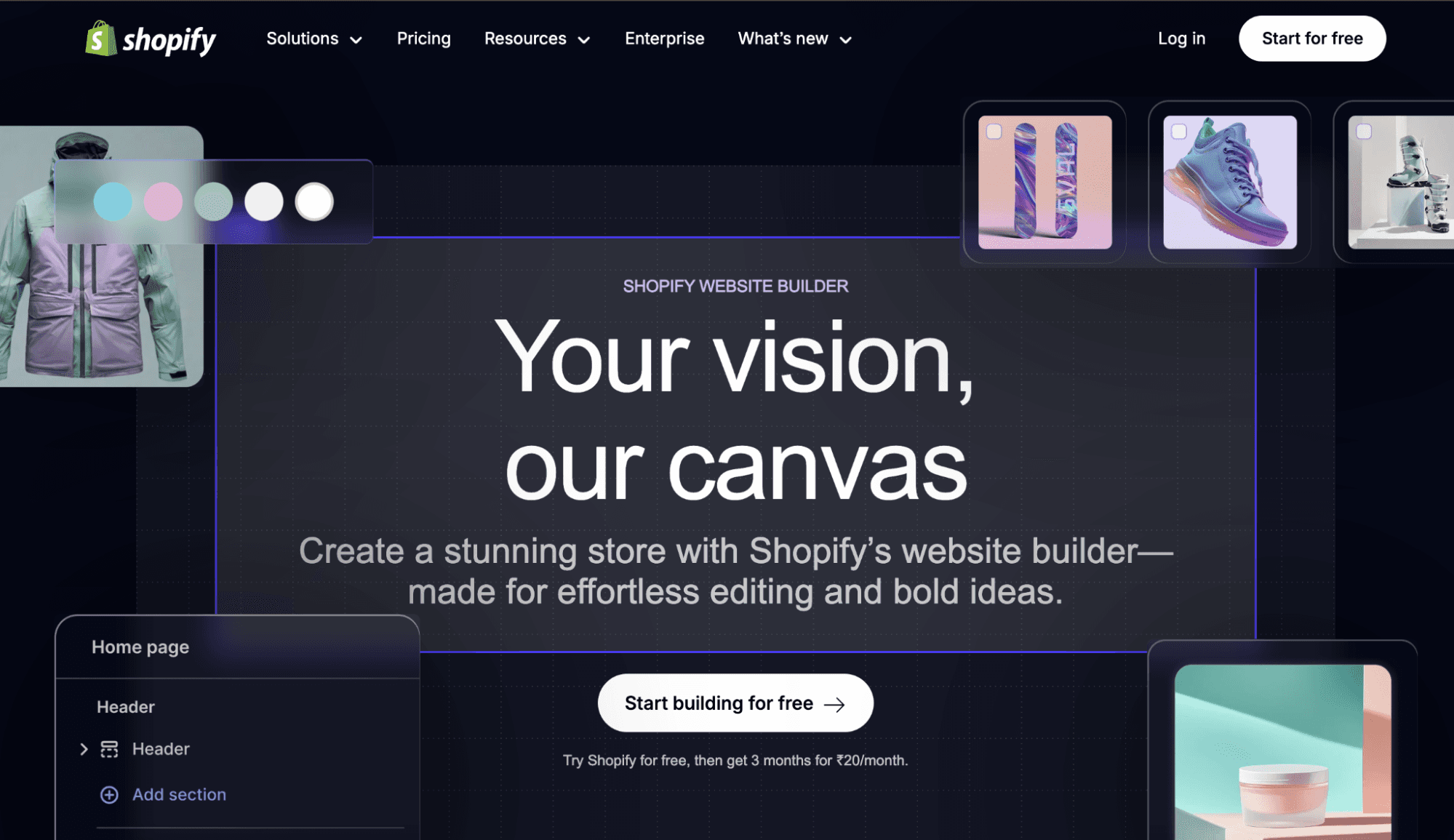
Why do I like Shopify? It gets you selling fast with a sensible structure. Pick a theme, add products, turn on payments, and you have a clean store without wrestling with layout decisions.
Who is Shopify best for? Small to midsize brands, dropshippers, and anyone who prefers clear guardrails over pixel-level control.
Pros
Sections-based editing keeps pages consistent
Massive app store with thousands of add-ons
Clean checkout and strong payments
Tons of tutorials and community help
Secure hosting and solid reliability
Cons
Premium themes and apps add real cost
Heavy custom changes need Liquid or a page builder
Performance can slow as apps pile up
Free themes feel limited
Account sprawl across many apps
Standout Features
Build by sections: Add and reorder pre-made content blocks like products, banners, or testimonials to design faster without breaking layouts.
Apps that fill the gaps: The app store covers almost every need — from shipping and SEO to loyalty rewards and reviews.
Payments made simple: Shopify Payments handles checkouts smoothly and cuts extra transaction fees.
Marketing inside the dashboard: Run discounts, send emails, and recover abandoned carts without leaving Shopify.
Smart inventory control: Track stock, taxes, and shipping from one place, even across sales channels.
Themes that perform: Use clean, mobile-ready designs that load fast and stay updated automatically.
Does Shopify use AI or automation tools?
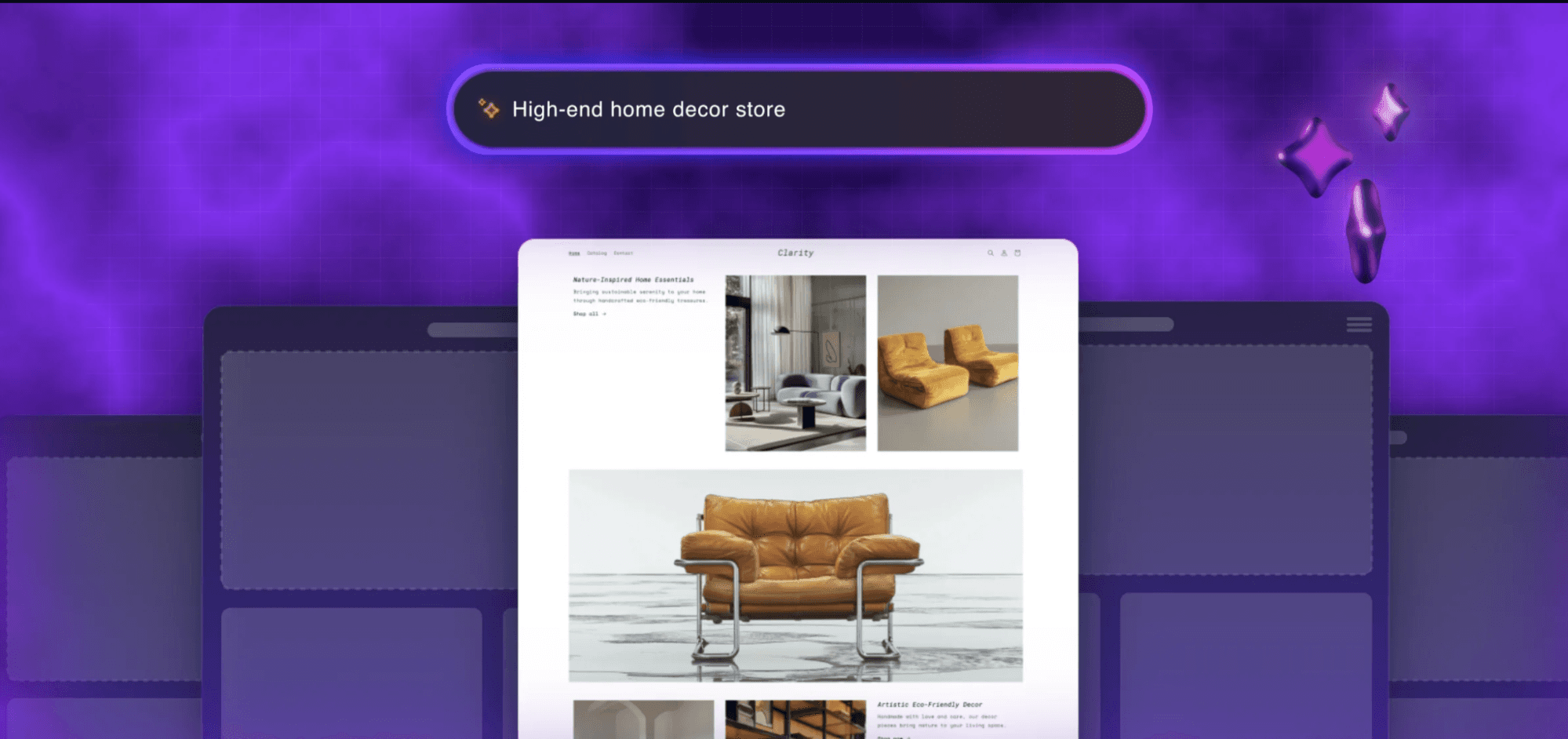
Yes. Shopify Magic can draft product descriptions, email copy, and basic page text, so you are not starting from a blank page. Recommendation and search apps add AI-powered product discovery, related items, and smart bundles. For automation, abandoned checkout messages, discount triggers, and order notifications are built in, and you can chain richer workflows with Shopify Flow on eligible plans.
Is Shopify easy to use and customize?
The setup is very clear. Pick a theme, add products, connect payments and shipping, and publish. The theme editor uses sections and blocks, which keep pages consistent and make common changes like headers, hero areas, product galleries, and footers simple. Deeper control is possible with Liquid templates, JSON templates, and theme code for those who want it, or with visual page builders such as PageFly, Shogun, or GemPages if you prefer to avoid code.
How much does Shopify cost?
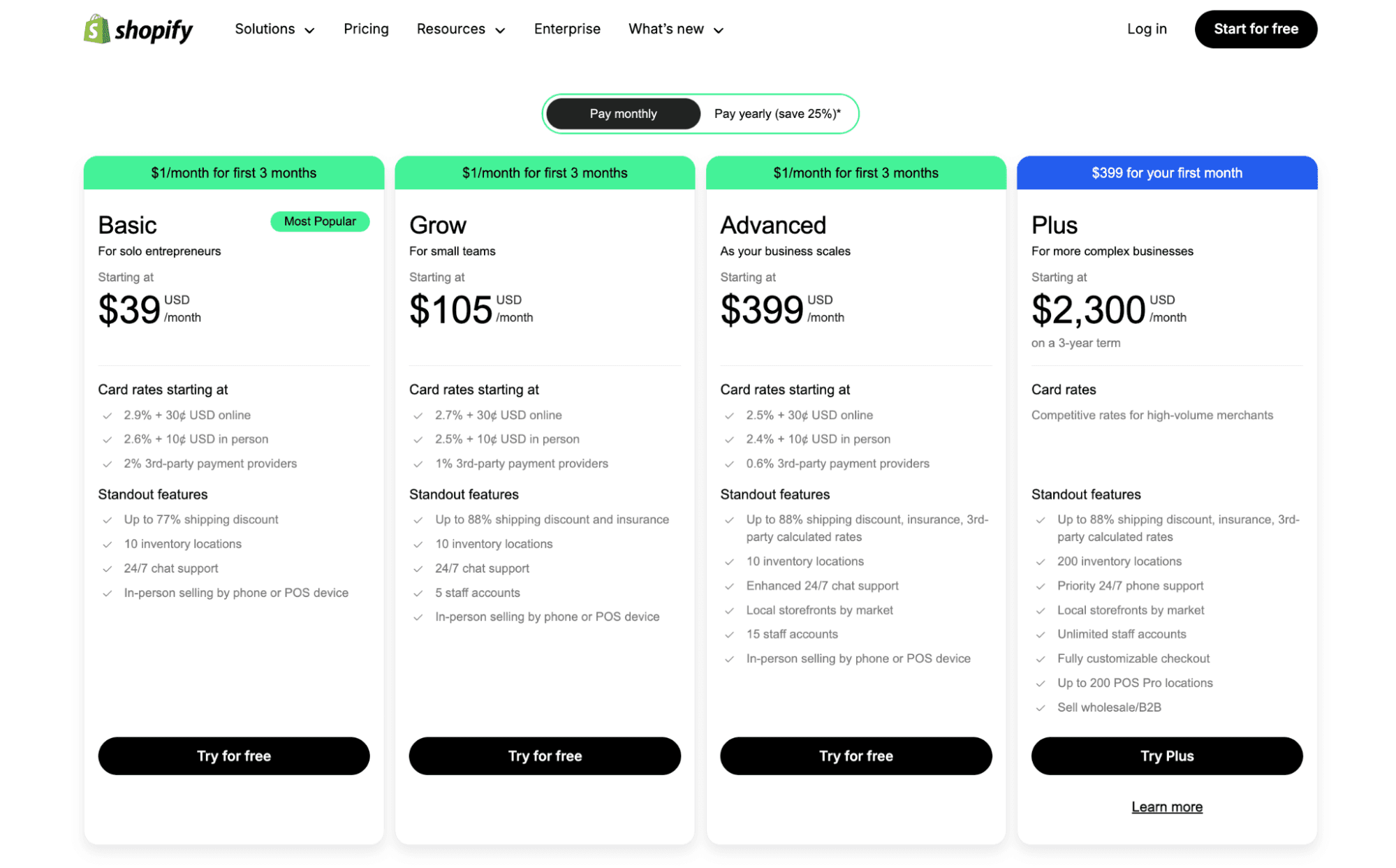
Shopify’s pricing starts at $39 per month for the Basic plan and goes up to $399 per month for the Advanced plan, with the Plus plan for enterprises at $2,300 per month on a three-year term. Higher tiers add better shipping discounts, more staff accounts, advanced reports, and dedicated support.
WordPress.com: Hosted WordPress with growth headroom
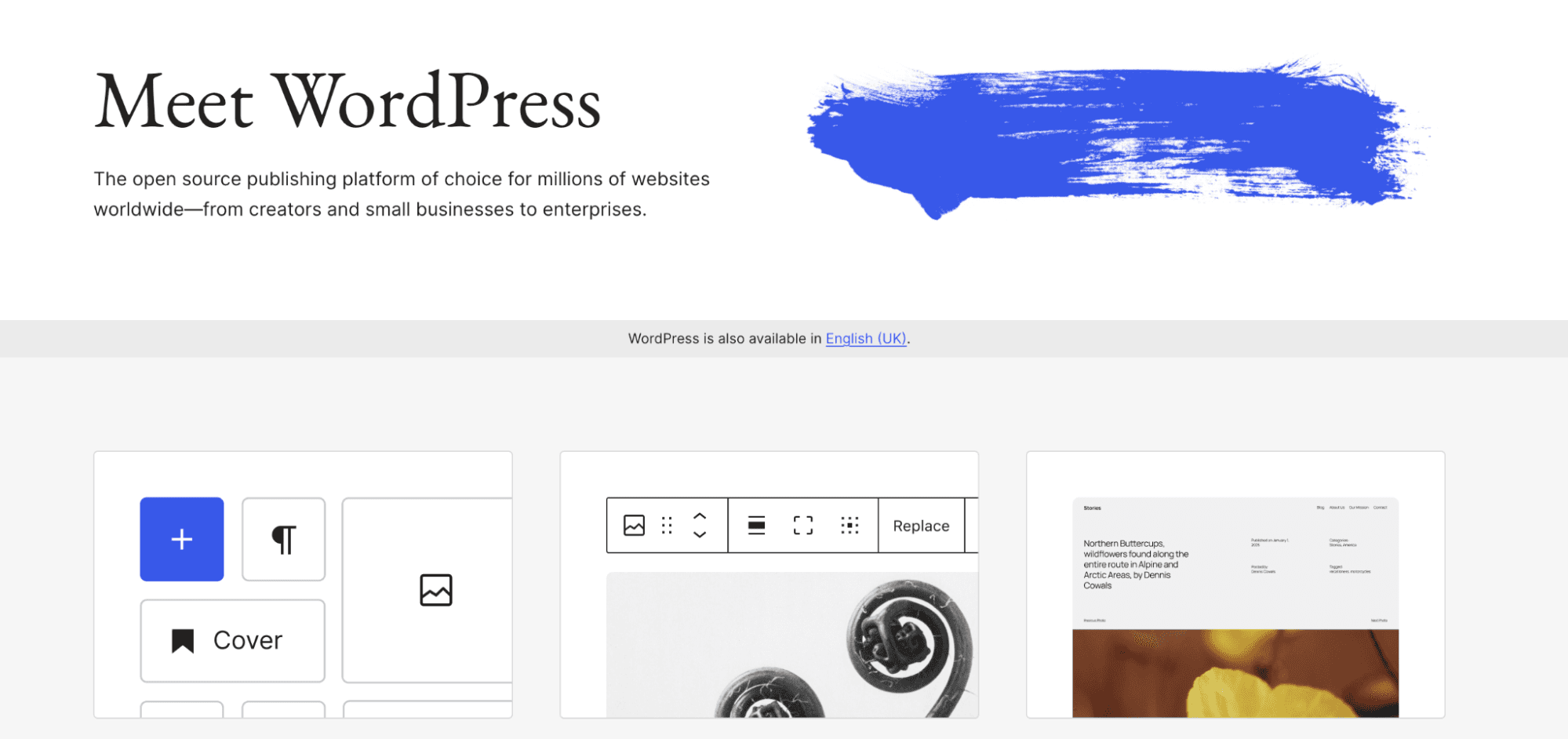
Why do I like WordPress.com? It gives you the power of WordPress without the technical setup. Hosting, security, and updates are handled for you, so you can focus entirely on building and publishing.
Who is WordPress.com best for? Bloggers, small business owners, and professionals who want a stable, SEO friendly platform that is easy to start with and has room to scale as their goals expand.
Pros
Structured, reliable hosting with built-in security and backups
Block editor is flexible while keeping layouts neat
Excellent blogging features with drafts, scheduling, and categories
SEO friendly structure with clean URLs and sitemaps
Easy to upgrade for more plugins, themes, and tools
Cons
Slight learning curve for absolute beginners
Full design control requires higher plans
Some themes restrict advanced customization
Settings can be a bit tucked away
Less visually free than Wix or Squarespace
Standout Features
Block-based editing: Build pages with reusable blocks like text, images, and buttons for easy, structured layouts.
Fully managed platform: Hosting, backups, and security are taken care of automatically, so you can focus on content.]
Blogging first: WordPress’s editor, scheduling, and categories make writing and publishing simple and efficient.
SEO ready: Clean URLs, automatic sitemaps, and fast performance make it great for search visibility.
Grows with you: Start small and expand to custom themes, plugins, or eCommerce without rebuilding your site.
Built-in tools: Analytics, forms, and marketing options are included in the dashboard.
Does WordPress.com use AI or automation tools?
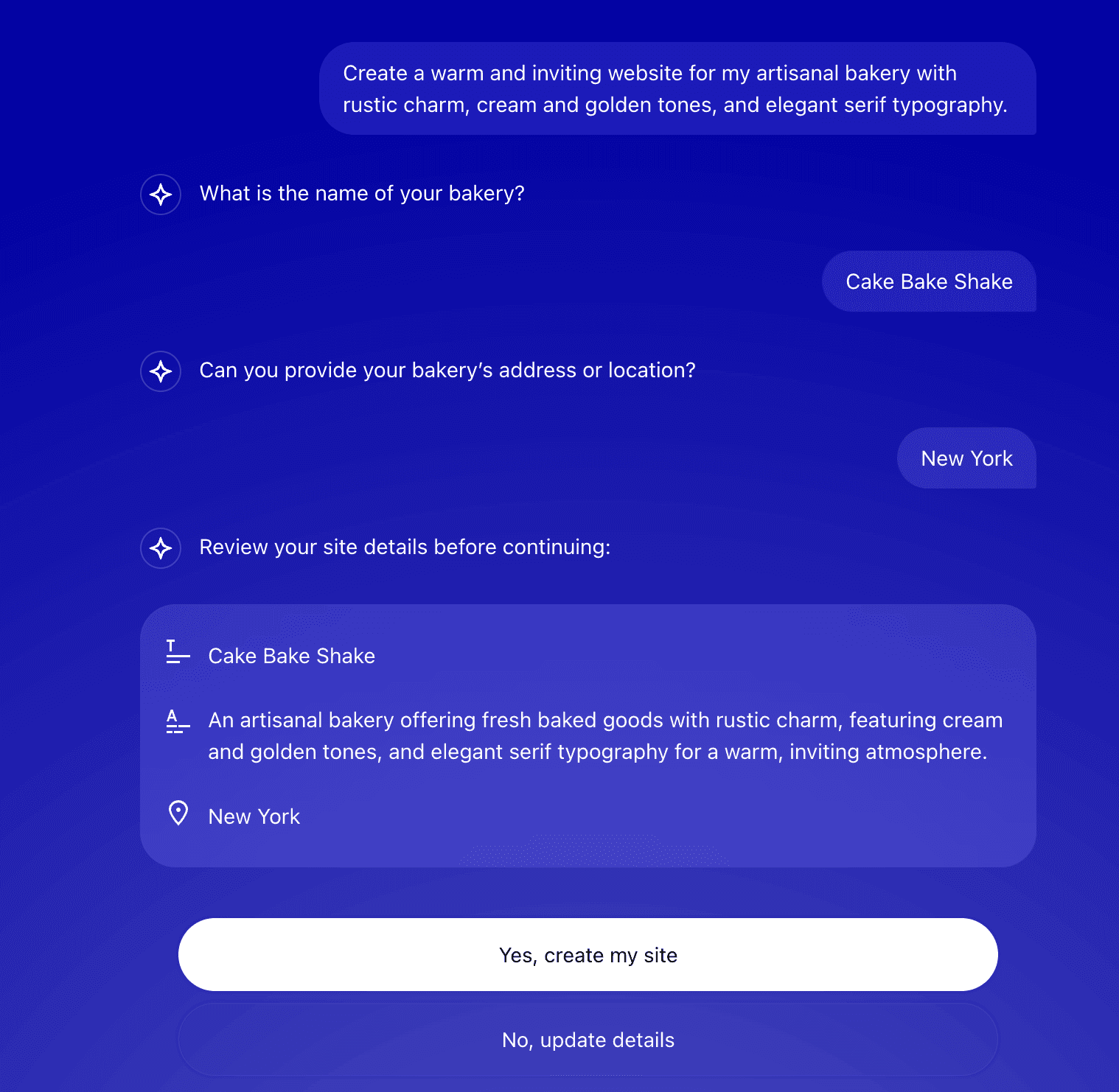
Yes. WordPress.com includes AI tools to generate post titles, summaries, and content suggestions. You also get automatic updates, social post scheduling, and built-in backups that keep your site running smoothly with minimal effort.

Is WordPress.com easy to use and customize?
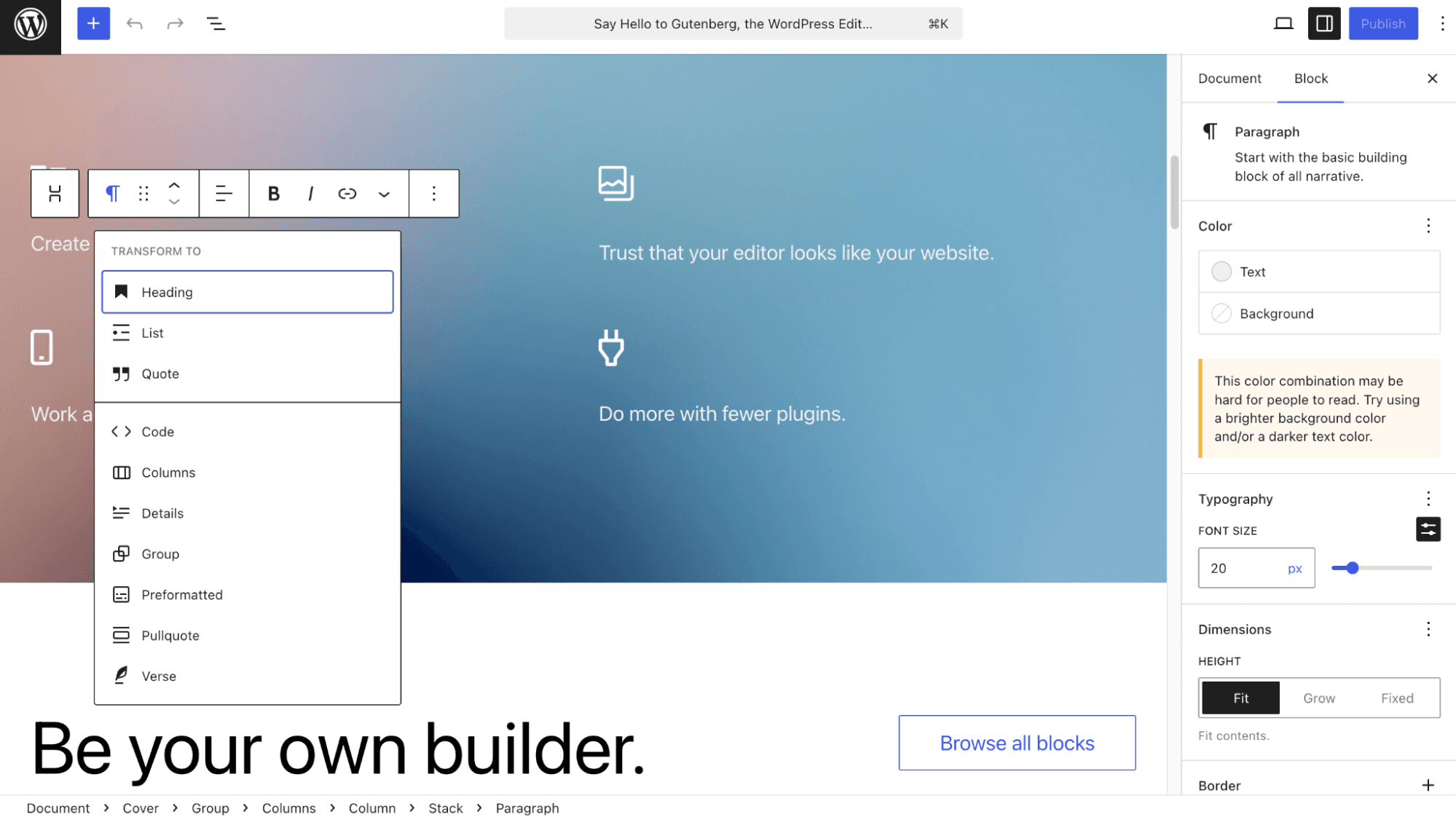
It is easier than the self-hosted version but slightly less visual than Wix or Squarespace. The block editor makes it simple to create and rearrange content, while menus and styling tools are easy to access. Deeper customization and plugin use become available on higher plans.
How much does WordPress.com cost?
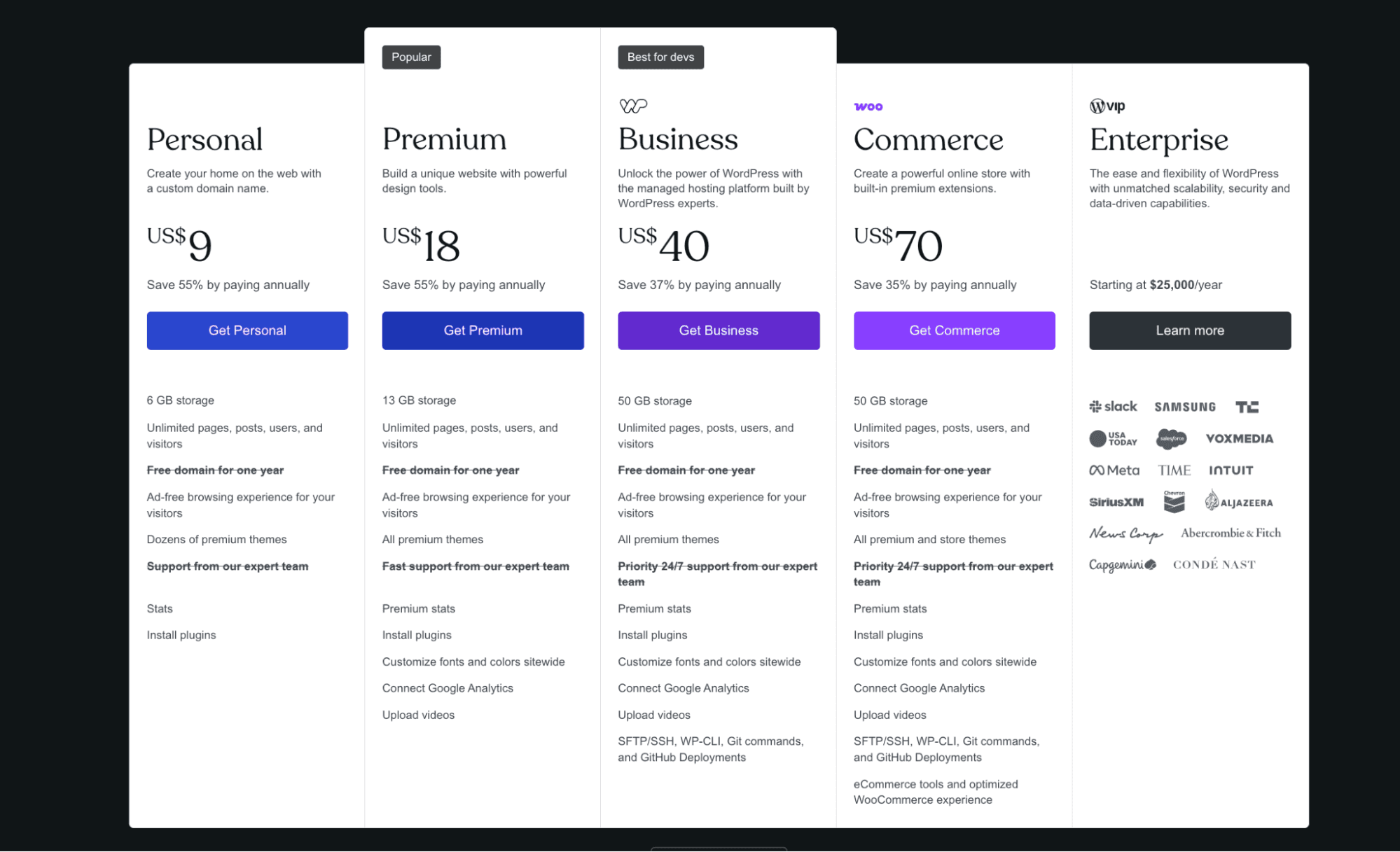
WordPress.com offers a free plan with branding and limited features. Paid plans start at $9 per month for Personal, $18 per month for Premium, $40 per month for Business, and $70 per month for Commerce. The Enterprise plan begins at $25,000 per year, offering advanced scalability, performance, and security for large organizations.
Hostinger Builder: Cheapest all-in-one to get online
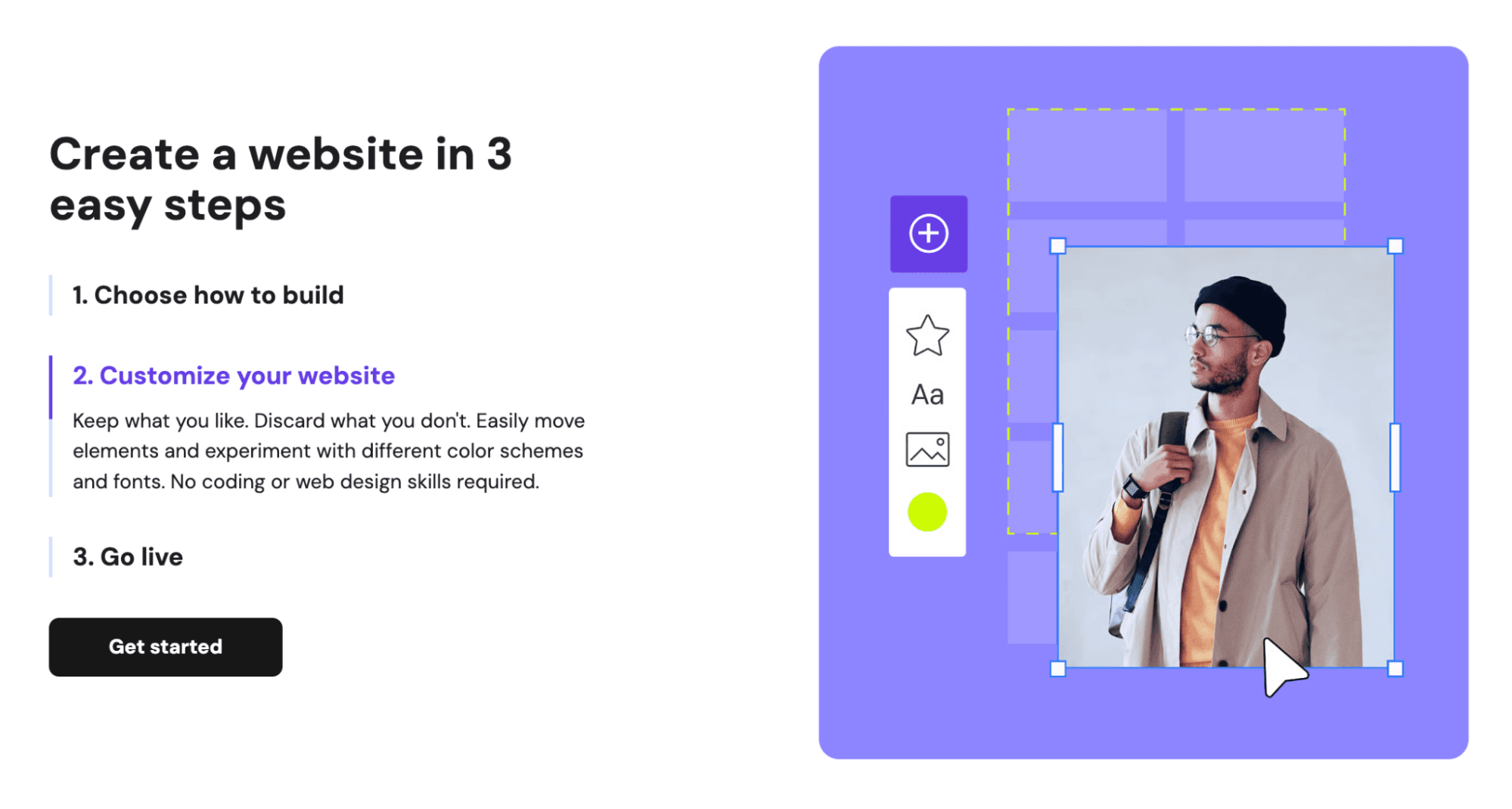
Why do I like Hostinger Builder? It ditches clutter for a clean editor and lets AI handle the heavy lifting. You can start with 150 plus templates or have the builder create pages, sections, and starter copy for you, then tweak layouts with simple grids, drag and drop, and quick undo or restore.
Who is Hostinger Builder best for? Beginners, freelancers, and small businesses that want an inexpensive, fast setup for one or many projects without juggling multiple subscriptions.
Pros
Very low promo pricing for lots of sites
AI can generate pages, text, and fix mobile views
Simple editor with grids, animations, and easy undo
Fast performance and solid uptime for the price
Backups, security, and export path to WordPress
Cons
Renewal prices jump after the first term
Templates are good but less premium than top rivals
App ecosystem is smaller than Wix or Shopify
Advanced ecommerce is basic
AI images can be hit or miss
Standout Features
AI site start: Describe your business and get a multi page site with starter copy you can refine.
Guided editing: An assistant points you to the exact place to add forms, menus, or sections.
Mobile fixes: One click adjustments clean up layouts for phones and tablets.]
Safety net: Version restore and automatic backups make experiments safe.
Multi-site value: Run up to 25 websites under one subscription, ideal for side projects and clients.
Exit friendly: Export to WordPress later if you outgrow the builder.
Does Hostinger Builder use AI or automation tools?
Yes. Its AI can create initial layouts, write product and blog copy, suggest keywords for SEO, and guide you to the right settings. It also automates backups and basic security so you spend less time on maintenance.
Is Hostinger Builder easy to use and customize?
Very. The interface is clean and hard to break, with sensible grids, drag and drop, and quick undo. You can add light animations, edit styles globally, and rely on backups if you go too far. Power users can still fine-tune SEO and store settings, but most basics are point and click.
How much does Hostinger Builder cost?
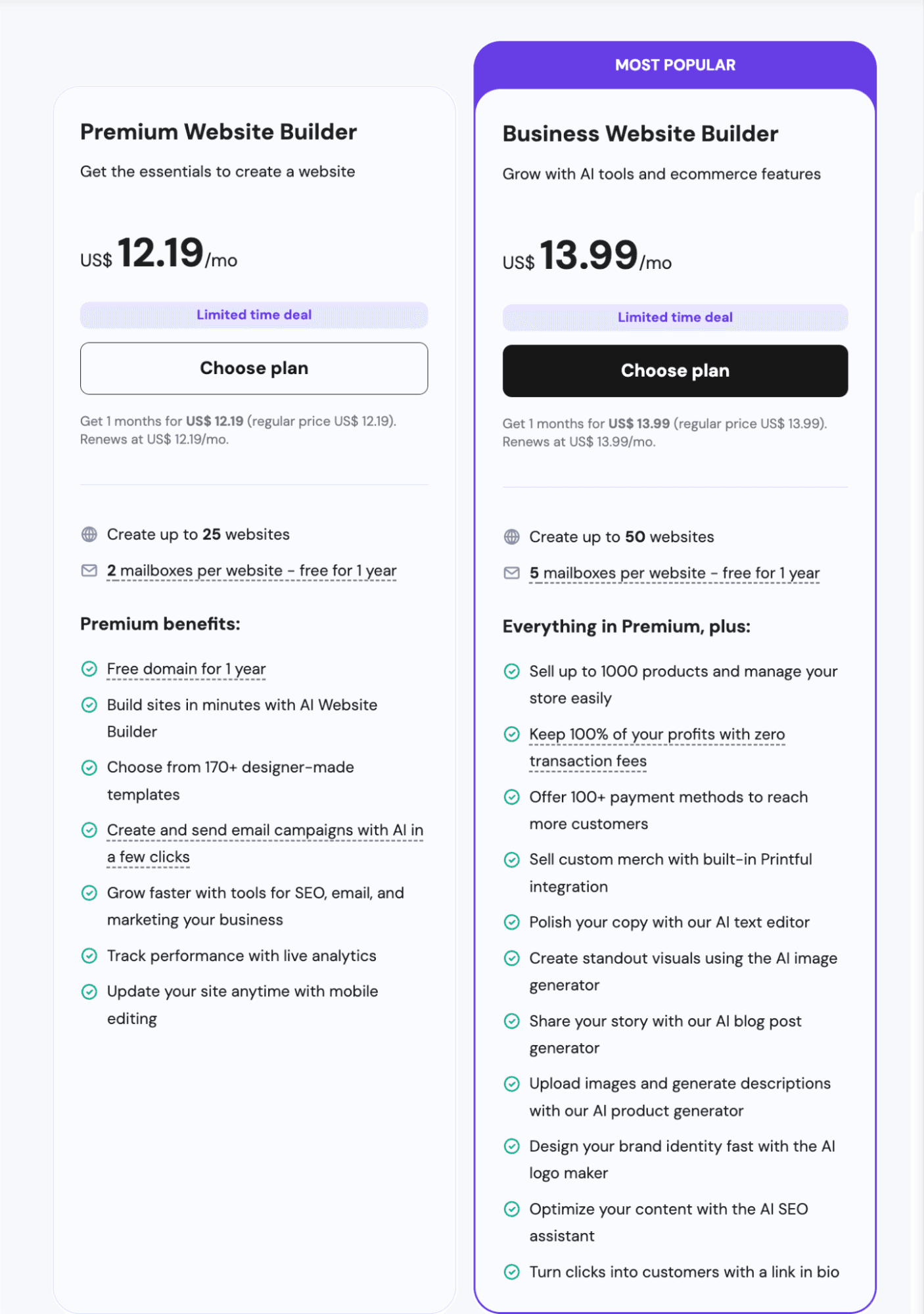
Premium Website Builder is $12.19 per month (limited-time deal), supports up to 25 websites, and includes two mailboxes per site free for one year. Business Website Builder is $13.99 per month, supports up to 50 websites, and adds ecommerce (up to 1,000 products, 100+ payment methods, Printful integration), extra AI tools, and five mailboxes per site for one year.
How I Test Website Builders
I don’t test website builders by just clicking around for a few minutes. I actually build real websites, landing pages, blogs, and even mini stores, just the same way you would. My goal is to see how quickly I can go from a blank screen to something I’d be proud to show a client or friend.
Here’s what I focus on:
Ease of starting: Can I build something decent within the first hour without watching tutorials or getting stuck?
Editing experience: Does it feel natural to move elements, align things, and adjust layouts, or does it make me want to rage click “Undo”?
AI and automation: Are the AI tools actually helpful for building and writing, or just marketing fluff?
Speed and reliability: I test real load times with PageSpeed Insights and note any lags in the editor.
SEO and marketing tools: Can I set titles, meta descriptions, and schema easily? Do they offer built in email or analytics that actually help?
Scalability: I look at how the platform grows with you, whether it traps you in its ecosystem or lets you expand when your business takes off.
Everything in this guide comes from hands on use, not press releases or affiliate scripts. If something feels clunky, I call it out. Because at the end of the day, I’m testing these tools the same way you would: to build something that looks good, works fast, and doesn’t make you lose your weekend figuring it out.
Questions You Might Have (FAQs)
What website builder is 100% free?
Several builders have true free plans: Wix, WordPress.com, Carrd, Webflow, Framer, Google Sites, and GitHub Pages. You can publish without paying, but expect limits such as a platform subdomain, storage caps, and in some cases platform ads or feature caps. If you want a custom domain, ecommerce, or advanced SEO, you’ll need a paid plan.
Is GoDaddy or Wix better for website design?
Wix wins for design freedom. It offers hundreds of modern templates, true drag and drop control, an app market, and stronger design tools. GoDaddy is simpler and fast to set up with its automatic builder, but it is more template locked and better suited to very small, straightforward sites. Choose Wix if you value look and flexibility, GoDaddy if you want the quickest, simplest path.
Can ChatGPT build a website?
ChatGPT can generate page copy, sitemaps, image prompts, and even exportable HTML, CSS, and JavaScript or theme snippets for platforms like WordPress. You still need a place to host and publish it, such as a builder or a host. You can also use ChatGPT alongside a builder to draft sections, product descriptions, and SEO text, then paste and refine.
What is the best AI to build a website?
Hostinger Builder AI is best for beginners who want a fast, affordable start. Framer AI suits designers who want full creative control with smart layout suggestions. Webflow AI helps pros automate SEO and content setup, while Shopify Magic is ideal for ecommerce stores. For the easiest hands-off experience, Wix ADI builds a complete site from just a few questions.
How to design a website?
Start with a clear goal and audience. Pick a platform that fits your needs—Squarespace or Framer for design, Shopify for stores, or Hostinger for budget builds. Choose a mobile-ready template, keep layouts simple, use consistent fonts and colors, and write real, benefit-driven copy. Test speed, forms, and mobile views before publishing.